Why Firestick Is the Most Popular IPTV Device
Amazon Firestick has become the default IPTV streaming device for most new subscribers, and the reasons are practical rather than marketing-driven. It costs significantly less than a dedicated Android TV box, connects via HDMI to any television manufactured in the last decade, and runs a version of Android that supports the IPTV player apps subscribers actually need — particularly IPTV Smarters Pro, which is available directly from the Amazon Appstore.
The setup experience is genuinely straightforward. Unlike earlier streaming sticks that required technical workarounds to run IPTV software, modern Firestick models handle the process cleanly: find the app in the Appstore, install it, enter your IPTV subscription credentials, and begin watching. For subscribers who are not technically minded, that simplicity is meaningful. And for subscribers who move between properties or want to watch IPTV on a hotel television while travelling, the Firestick's portability is a distinct advantage no set-top box can match.
The Fire TV ecosystem also benefits from continued Amazon investment. Each successive generation brings improved processing power, better Wi-Fi performance, and additional features like Alexa voice control — none of which are essential for IPTV but all of which contribute to a more polished overall experience. The 4K models in particular offer sufficient processing headroom to handle 4K IPTV streams without the dropped frames or buffering that earlier hardware sometimes produced.
That said, Firestick is not the only viable IPTV device — Android TV boxes like the Nvidia Shield offer a more powerful platform, and dedicated MAG boxes serve users who want a purpose-built IPTV device. But for the majority of subscribers who want a capable, affordable, and easy-to-use solution for IPTV on their living-room television, Firestick represents an optimal balance of cost, capability, and convenience.
Which Firestick Model Should You Choose for IPTV?
Amazon's Firestick lineup spans several generations and capability tiers. For IPTV streaming, the key factors are processor speed (which determines how smoothly high-bitrate streams decode), maximum output resolution, and Wi-Fi standard. Here is how the current models compare for IPTV use specifically.
| Model | Max Resolution | Wi-Fi | IPTV Performance | Verdict |
|---|---|---|---|---|
| Firestick Lite | 1080p | Wi-Fi 5 | Adequate for HD | Entry level |
| Firestick (3rd Gen) | 1080p | Wi-Fi 5 | Good for HD/FHD | Good value |
| Firestick 4K | 4K UHD | Wi-Fi 5 | Excellent for HD–4K | Recommended |
| Firestick 4K Max (2nd Gen) | 4K UHD | Wi-Fi 6E | Best performance | Best choice |
| Fire TV Cube (3rd Gen) | 4K UHD | Wi-Fi 6E + Ethernet | Premium; ethernet built-in | Premium option |
The Firestick 4K Max (2nd Generation) is the optimal choice for IPTV in 2026. Its Wi-Fi 6E support delivers more consistent wireless performance, and its processor handles 4K streams without the dropped frames that occasionally appear on older hardware. If budget is a constraint, the standard Firestick 4K is an excellent second choice — capable of HD and 4K streaming with a slight performance margin below the Max variant.
Best IPTV Player Apps for Firestick in 2026
Your IPTV player app is the interface between your subscription credentials and the content you watch. Choosing the right app significantly affects your day-to-day experience — channel navigation speed, EPG accuracy, stream switching, and on-demand library access all depend on the app rather than the IPTV provider. Here are the best options available for Firestick in 2026.
The most widely used and consistently recommended IPTV player for Firestick. Available directly from the Amazon Appstore, it supports M3U and Xtream Codes, includes EPG support, handles on-demand VOD, and offers multi-screen layout options. The interface is clean and navigates well with the Fire TV remote.
A solid alternative to Smarters Pro with a strong EPG implementation and reliable stream playback. GSE is particularly well-regarded for its remote playback functionality and consistent performance on lower-powered devices including older Firestick models.
A newer IPTV player that has gained traction for its polished interface and good performance on 4K streams. Duplex Play's TV-optimised layout works well with the Firestick remote and is worth trying if you find Smarters Pro's interface too busy for your preferences.
Step-by-Step: How to Set Up IPTV on Firestick
Setting up IPTV on a Firestick for the first time takes around 10–15 minutes. The process below uses IPTV Smarters Pro, which is the recommended player for most subscribers. If you prefer a full walkthrough with screenshots and troubleshooting, our dedicated IPTV Smarters Pro setup guide covers the complete process.
Navigate to Settings → My Fire TV → Developer Options and enable Apps from Unknown Sources. This setting allows you to install apps from outside the Amazon Appstore if required. For IPTV Smarters Pro specifically, this step may not be necessary as it is often available directly in the Appstore — but enabling it provides flexibility for additional apps in future.
Press the Search icon on your Firestick home screen, type "IPTV Smarters Pro", and select it from the results. Press Download or Get. The app installs in under a minute. Once installed, open it from your apps list — it will not appear on the main home screen automatically.
Contact us via WhatsApp and complete your IPTV subscription. You will receive either an M3U URL or Xtream Codes details (username, password, server URL) via WhatsApp. Keep these handy for the next step — you'll need to enter them into the app.
Open IPTV Smarters Pro and select Add User. Choose between Xtream Codes API (enter username, password, and server URL) or M3U URL (paste your playlist link). Add a profile name, confirm the entry, and the app will begin loading your channels. This process typically takes 30–60 seconds depending on your channel count.
Your channel lineup, EPG guide, and VOD library are now accessible. Use the Live TV tab to browse channels, or search for a specific channel by name. Select any channel and playback begins. Use the remote's back button to return to the channel list. To watch sports, navigate to your sports channels or use the EPG to see what's live.
IPTV Smarters Pro: Configuration & Key Settings
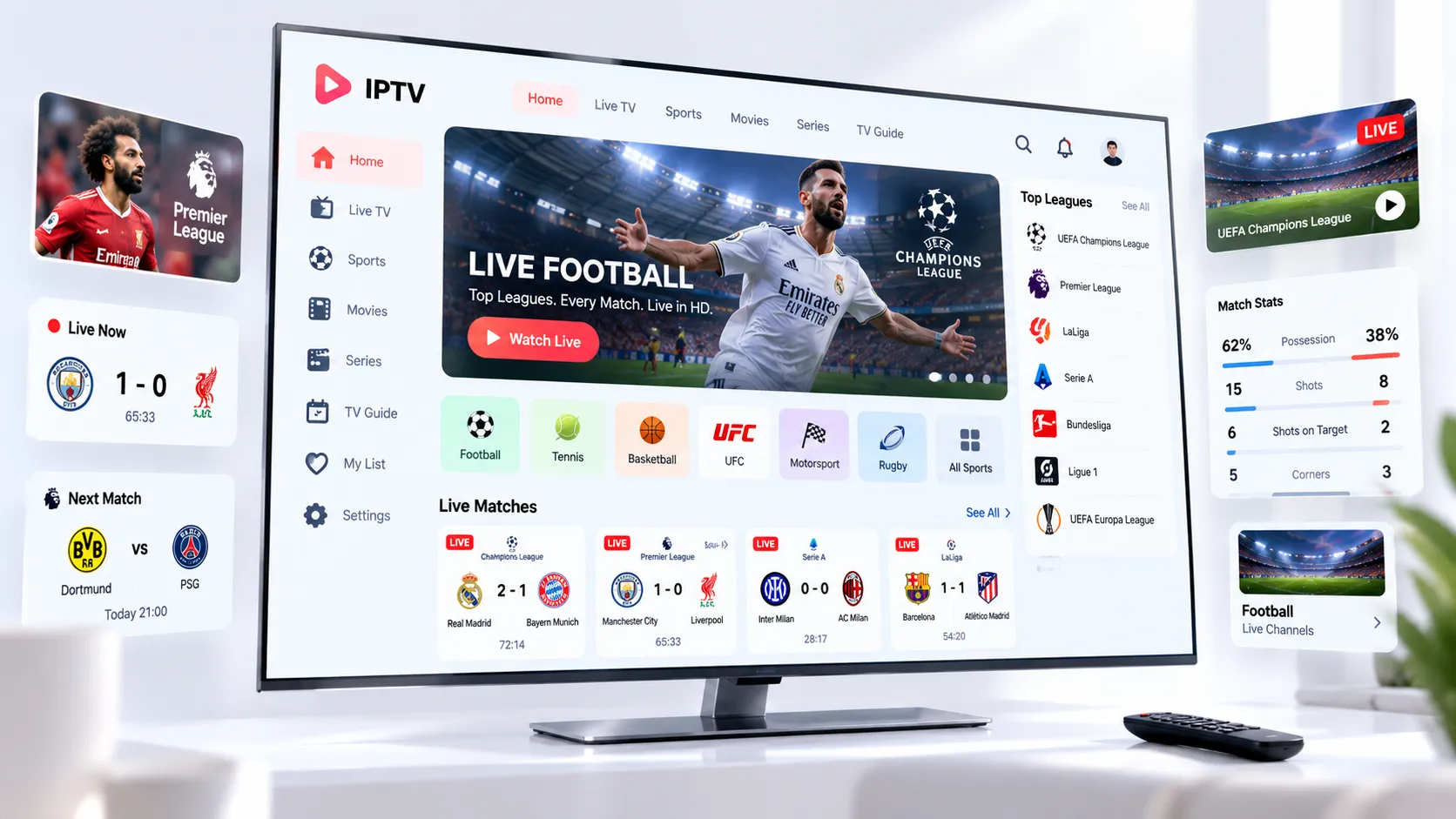
Once IPTV Smarters Pro is installed and your credentials are entered, a few configuration choices significantly improve the experience. Understanding these settings helps you get the most out of the app from day one rather than discovering them through trial and error.
EPG source: IPTV Smarters Pro can load an Electronic Programme Guide (EPG) that shows you what's currently airing and what's scheduled on each channel. Your Xtream Codes connection typically includes an EPG URL automatically. If it doesn't appear after loading, check the EPG settings in the app menu and ensure the EPG URL from your provider is correctly entered.
Video player selection: Smarters Pro offers a choice between its internal player and ExoPlayer. ExoPlayer generally performs better for high-bitrate streams and is the recommended default for Firestick. If you experience playback issues with one player, switching to the other is a quick diagnostic step.
Buffer size: The buffer time setting controls how much content the app loads ahead of your current playback position. A slightly longer buffer (3–5 seconds) reduces interruption risk on less stable connections; a shorter buffer improves stream-switching speed. For live sports, the default setting generally works well.
For a complete guide to every setting and screen within IPTV Smarters Pro — including advanced configuration options and troubleshooting steps — our dedicated IPTV Smarters Pro setup guide covers the full process with step-by-step instructions.
Optimising IPTV Performance on Firestick
Firestick hardware is capable but not unlimited. A few practical optimisation steps can meaningfully improve IPTV stream quality and reduce buffering — particularly on older models or in environments with challenging Wi-Fi conditions. According to Amazon's own Fire TV performance guidance, regularly clearing app caches is one of the most effective steps for maintaining smooth playback on Firestick.
Use Ethernet
A micro-USB or USB-C ethernet adapter (depending on your Firestick model) provides a wired connection to your router, eliminating Wi-Fi variability. This is the single most effective improvement for IPTV stream stability, particularly during live sports events where consistent throughput matters most.
Clear App Cache Regularly
Navigate to Settings → Applications → Manage Installed Applications → IPTV Smarters Pro → Clear Cache. Doing this every few weeks prevents cache accumulation that can slow channel loading and cause stream hesitation on older Firestick hardware.
Close Background Apps
Firestick's RAM is limited. Press and hold the Home button, select Apps, and force-close any running apps before launching IPTV Smarters Pro. This frees memory for the IPTV player, which can reduce stream buffering particularly on non-4K Firestick models.
Keep Firestick Updated
Fire OS updates often include performance improvements and bug fixes relevant to third-party app behaviour. Go to Settings → My Fire TV → About → Check for Updates periodically. Updated system software typically produces better IPTV playback consistency.
Use 5GHz Wi-Fi Band
If ethernet isn't practical, ensure your Firestick connects to your router's 5GHz band rather than 2.4GHz. The 5GHz band provides higher throughput and less interference from neighbouring networks — beneficial for the sustained bandwidth that HD and 4K IPTV streams require.
Disable Data Monitoring
Amazon's built-in data monitoring feature can occasionally interfere with third-party streaming apps. Go to Settings → Preferences → Privacy Settings and review data collection options. Disabling non-essential background processes frees resources for smoother IPTV playback.
Watching Sports on IPTV via Firestick
Sports streaming is the primary use case for many IPTV subscribers, and Firestick handles it well when the setup is properly configured. The key considerations for live sports on IPTV are slightly different from general TV streaming: the unforgiving nature of live content means any buffering at the wrong moment — a crucial play, a penalty kick — is significantly more frustrating than buffering during a drama or film.
For sports specifically, a wired ethernet connection is strongly recommended. Live sports broadcasts are often delivered at higher bitrates than standard entertainment channels, and the bursty nature of sports data — action sequences demand much more bandwidth than static shots — amplifies any Wi-Fi consistency issues. An ethernet adapter for your Firestick costs very little and makes a measurable difference during live events.
Server load on your IPTV provider is also higher during major live events. This is a provider infrastructure issue rather than a Firestick or app issue — and it is one of the key differentiators between quality providers and cheaper alternatives. Our IPTV sports streaming guide covers which leagues and channels are covered and what to look for in a provider's sports offering before subscribing.
On the Firestick specifically, close all other apps before a major sporting event begins, reduce background data consumption from other household devices, and consider lowering the stream quality one step below maximum if you experience buffering — trading a marginal picture quality reduction for consistent, uninterrupted playback is generally the correct decision during live sports.
Common Firestick IPTV Issues and Solutions
Most IPTV problems on Firestick fall into a small number of categories. Here are the most common issues subscribers encounter and the steps that reliably resolve them.
Buffering during playback
Most likely cause: Wi-Fi signal instability or insufficient bandwidth.
Solutions: Connect via ethernet; move closer to router; switch to 5GHz band; close background apps; check your broadband speed via a speed test app. If buffering only occurs during live sports, the issue may be provider server load — contact us via WhatsApp to check.
Channels not loading or showing error messages
Most likely cause: Credential issue or app cache problem.
Solutions: Clear the app cache (Settings → Applications → IPTV Smarters Pro → Clear Cache); restart the app and Firestick; verify your credentials are entered correctly by checking for typos in the server URL or username. If the issue persists, contact us on WhatsApp — we can verify your credentials from our side.
App crashes or closes unexpectedly
Most likely cause: Insufficient free RAM or outdated app version.
Solutions: Force-close all background apps before launching IPTV Smarters Pro; check for app updates in the Appstore; if the issue continues on an older Firestick Lite, consider upgrading to a 4K model which has more processing headroom.
EPG not loading or showing incorrect programme information
Most likely cause: EPG URL not configured or refreshing slowly.
Solutions: In IPTV Smarters Pro, go to Settings and confirm the EPG URL is populated (it should come automatically with Xtream Codes). Force-refresh the EPG from the app settings. EPG data typically updates every 24 hours — if the guide shows yesterday's schedule, allow time for the refresh to complete.
If the steps above don't resolve your issue, reach us on WhatsApp with the specific error message or symptom you're seeing, the Firestick model you're using, and the app you've installed. Our support team resolves most IPTV setup and streaming issues within a few hours — and for our subscribers, detailed setup guidance is always included at no extra cost.
Frequently Asked Questions: IPTV on Firestick
Yes. Amazon Firestick supports IPTV streaming through apps like IPTV Smarters Pro, available directly from the Amazon Appstore. Once installed and configured with your subscription credentials, the Firestick becomes a capable IPTV device connected to any HDMI television. Setup typically takes under 15 minutes from start to first stream.
IPTV Smarters Pro is the most widely used and consistently recommended IPTV player for Firestick in 2026. It supports both M3U playlists and Xtream Codes, includes EPG support, handles on-demand content, and is available directly from the Amazon Appstore without sideloading. GSE Smart IPTV and Duplex Play are strong alternatives worth considering if you find Smarters Pro's interface doesn't suit your preferences.
IPTV apps work on most Firestick models, but performance varies by generation. The Firestick 4K, Firestick 4K Max, and Fire TV Cube offer the best experience. The original Firestick Lite and older 2nd-generation models can run IPTV apps but may buffer on high-bitrate streams if their processors are insufficient. If you're using an older model and experiencing consistent buffering, upgrading to a 4K model is typically more effective than troubleshooting the connection.
The most effective steps: connect via ethernet adapter instead of Wi-Fi; clear the IPTV app cache regularly; close all background apps before streaming; ensure no other devices are consuming significant bandwidth simultaneously; verify your broadband speed meets the minimum for your chosen resolution. If buffering only occurs during live sports events, the issue may be server-side — contact us via WhatsApp to check whether there is a known peak-time issue with specific channels.
No. "Jailbreaking" a Firestick is not a required or recommended step for IPTV. IPTV Smarters Pro is available directly from the Amazon Appstore and installs cleanly without any modification to your device. The only settings change sometimes needed is enabling "Apps from Unknown Sources" in Developer Options — this is a standard Amazon setting, not a jailbreak, and does not void your warranty or affect your device's security meaningfully.